Accept Payments In Person
Overview
GoBTC Pay lets you accept payments in BTC. You link a wallet for settlements, create a store and a terminal, raise a charge from the POS app, and the customer pays it by scanning a QR code from their own wallet.
Before you start
You need access to:
- The GoBTC Pay merchant dashboard (web).
- The GoBTC Pay mobile app, version 1.1.1 or later.
Step 1. Link your receiving wallet
In the merchant dashboard, open Settings.
Open the Receiving wallet tab.
A one-time QR code appears (it expires after about 10 minutes).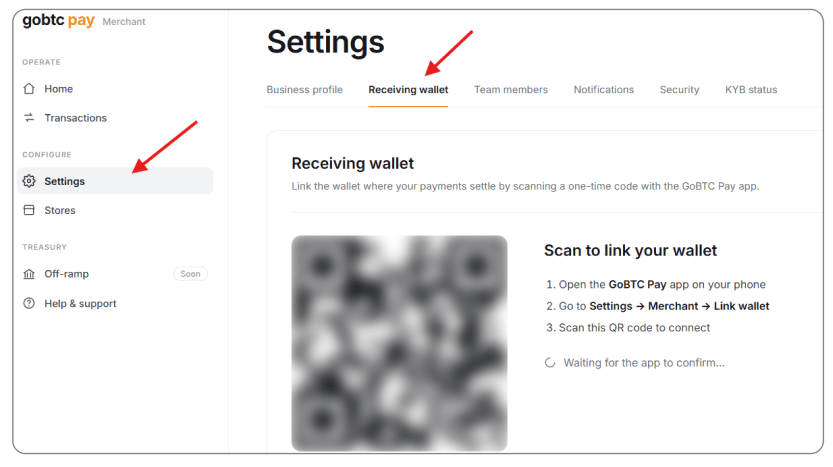
Open the GoBTC Pay app on your phone.
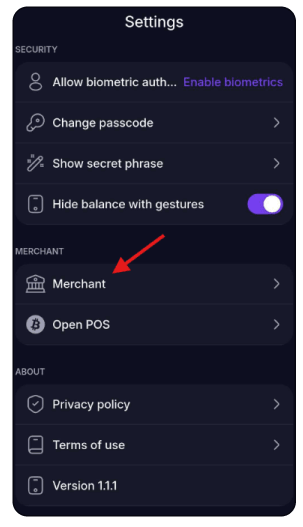
Go to Settings → Merchant → Link your wallet:
Tap Scan QR code:
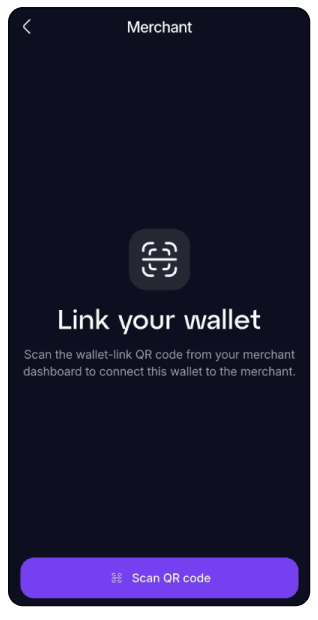
Scan the QR code from the dashboard and wait for the Wallet linked confirmation.
Back in the dashboard, the Receiving wallet tab shows Wallet linked and your Receiving address.
To change the wallet later, tap Link a different wallet and repeat the steps.
Step 2. Create a store
In the dashboard, open Stores:
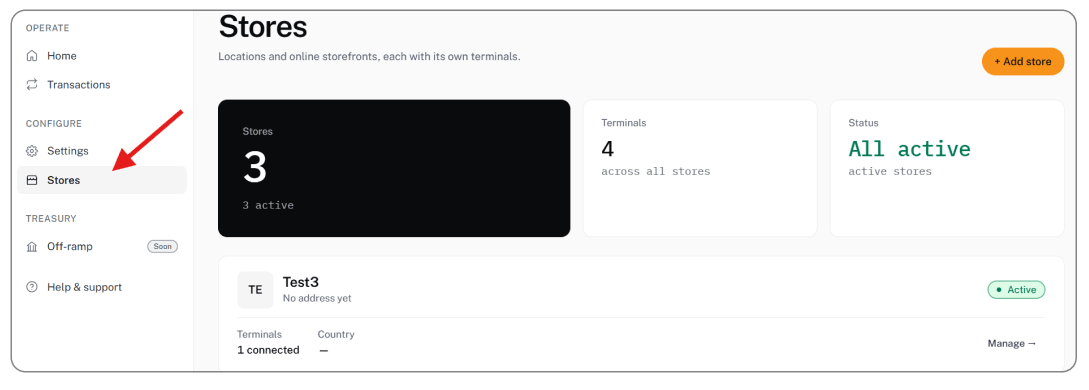
Tap + Add store, or the Add another store block.
Enter the store details (name, address, country). The store appears in the list with the Active status.
Step 3. Add a terminal
In the store list, tap Manage on the store you need:

On the Terminals tab, tap + Add terminal:
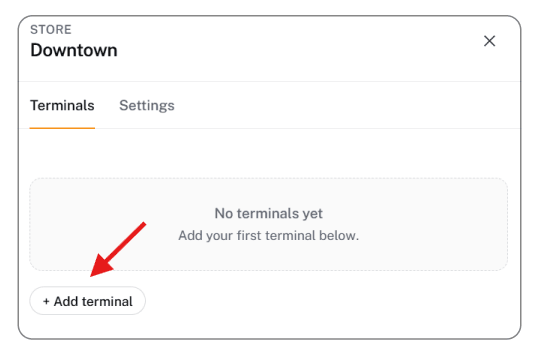
Enter a Terminal name, optionally fill in Location, then tap Add terminal.
A pairing QR code opens (Connect in the POS app). Keep it open, or tap Copy pairing code.
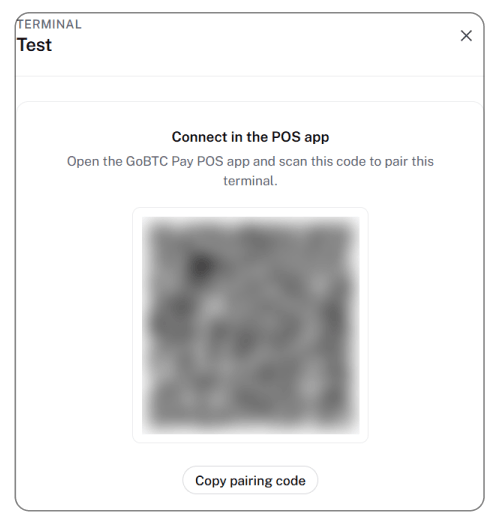
Step 4. Pair the POS terminal in the app
Open the GoBTC Pay app.
Go to Settings → Open POS:
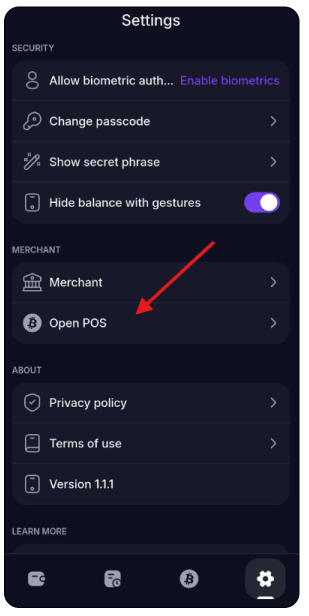
Tap Scan QR code
Scan the terminal QR code from the dashboard (Stores → your store → Manage → Terminals → terminal → QR code).
Once paired, the terminal screen opens with the terminal name at the top.
Step 5. Accept a payment
On the terminal screen, open the Charge tab:
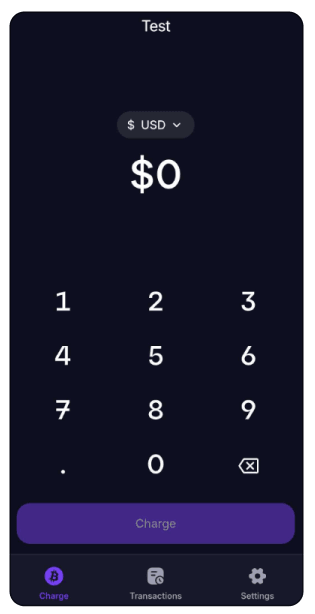
Select the currency from the dropdown.
Enter the amount on the keypad.
Tap Charge. The app generates a payment QR code.
Show the QR code to the customer.
The customer scans the QR code with their wallet and pays the BTC amount. The QR code contains a standard Bitcoin payment request with the exact address and amount.
While the screen shows Waiting for payment, the charge stays open. After the payment is confirmed, the transaction appears on the Transactions tab.
To cancel before the customer pays, tap Cancel.
Step 6. Review transactions and terminal details
In the POS app, when the terminal is open, the screen has a bottom bar with three tabs: Charge, Transactions, and Settings.
- Open the Transactions tab to see the payment history for this terminal.
- Open the Settings tab to see the Terminal ID, Store ID, and Merchant ID, plus the Minimize POS and Exit terminal buttons.
In the merchant dashboard (web), open the Transactions section in the left menu to track all payments across every store and terminal.